Prerequisites
Before starting the installation, make sure your computer has the necessary tools:
- Access to the Hosterfy administration panel.
- A CurseForge client installed on your PC.
- The Cobblemon: Star Academy modpack installed via CurseForge.
To enjoy a smooth and lag-free experience on your Cobblemon Star Academy server, it is essential to choose suitable hosting. At Hosterfy, we offer powerful and optimized plans to meet your needs:
- MC Enderman : recommended for up to 4 players.
- MC Creeper : perfect for 4 players or more, ensuring optimal stability.
If you want to play without performance constraints, you can now rent a Cobblemon Star Academy Minecraft server from Hosterfy and benefit from simplified installation and dedicated support to assist you.
Installing Fabric on the server
The first step is to install Fabric, the essential modloader for running the Cobblemon: Star Academy modpack.
- Log in to your Hosterfy administration panel.
- Go to the Quick Install tab.
- Select Fabric and install version 1.20.1.
- Check the Reinstall server option, then start the installation.
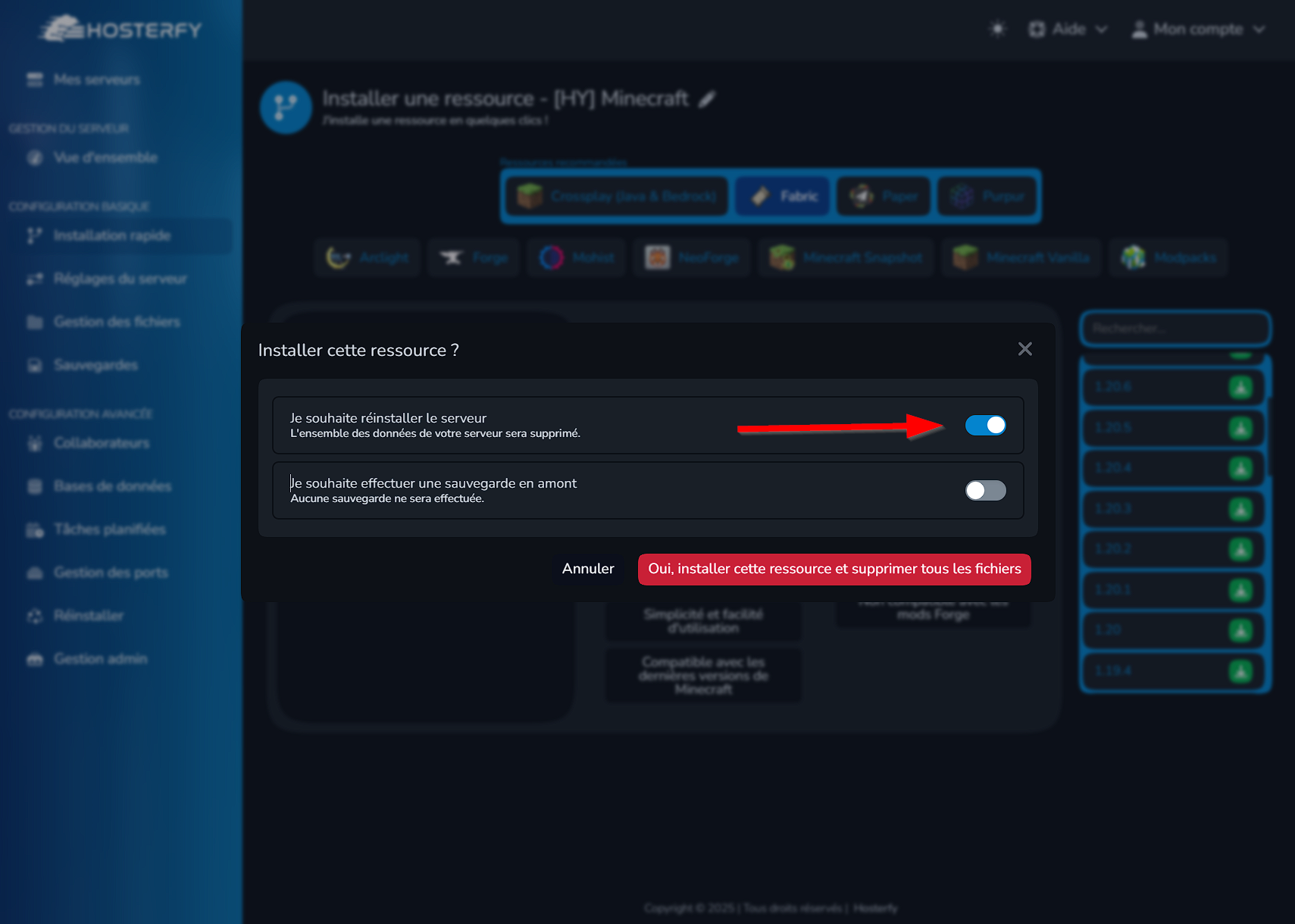
- Start then stop the server for the first time.
- Go to File Management and delete the following folders :
modsworld
Retrieving modpack files
We will now extract the necessary files from CurseForge to use them on the server.
- Open CurseForge on your PC.
- Right-click on the Cobblemon: Star Academy modpack.
- Select Open Folder.
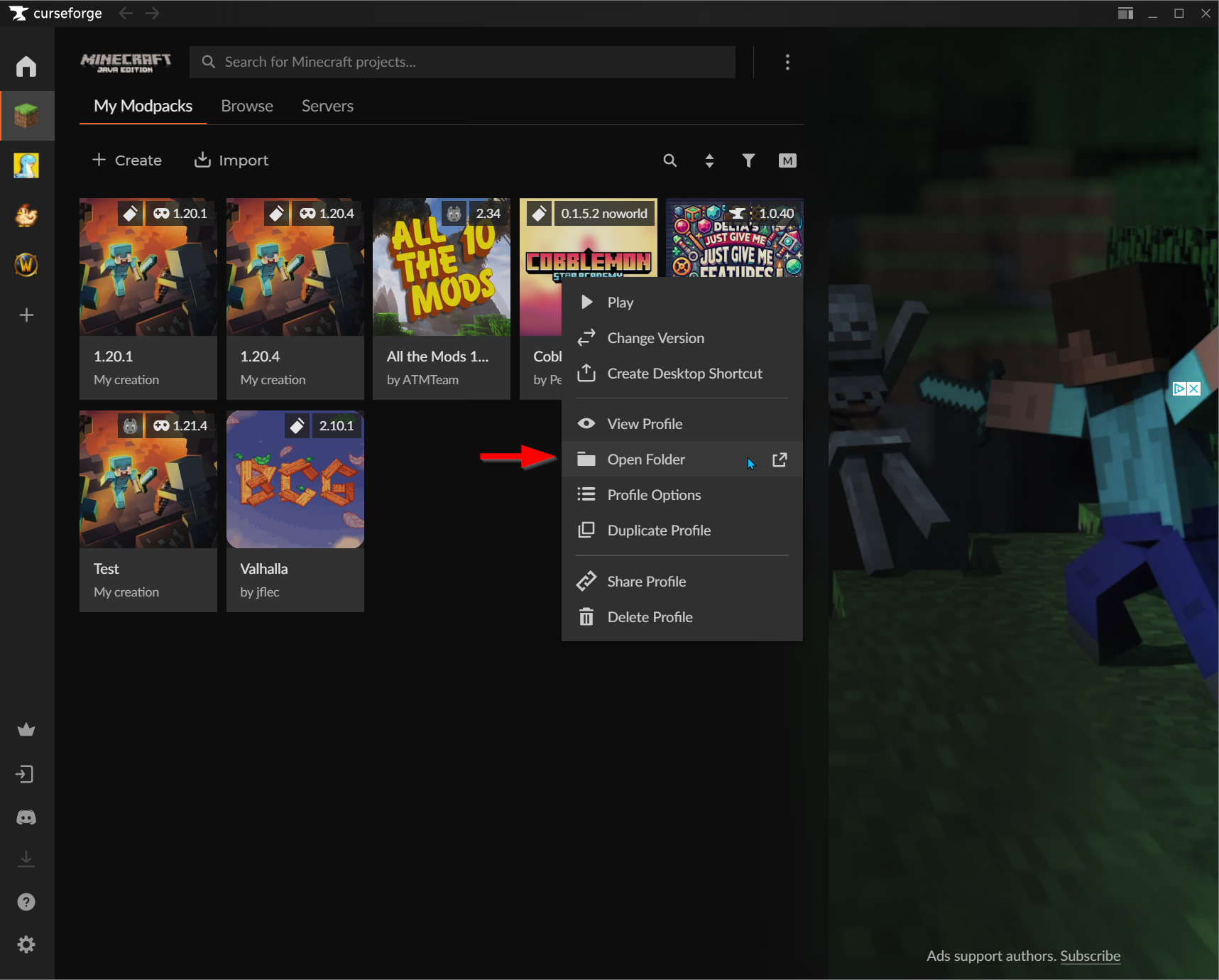
- Identify and set aside the following folders :
modsconfigglobal_packskubejsscripts
Transferring files to the server
Once these folders are set aside, all you have to do is transfer them to the server. To do this, go to the File Management tab, then drag and drop the aforementioned folders to the root of your server.
Deleting incompatible mods
Some mods included in the modpack do not work on a server. We will identify and delete them to avoid any conflicts.
Delete the following files in the mods folder on your server only :
- AdvancementPlaques-1.20.1-fabric-1.6.7.jar
- boosted-brightness-2.2.0 1.20.1.jar
- chatanimation-1.0.5.jar
- CobblemonMoveInspector-1.1.1.jar
- DefaultedHotkeys-1.2-fabric.jar
- dynamiccrosshair-9.3 1.20.1-fabric.jar
- dynamiccrosshaircompat-4.0 1.20.1.jar
- iris-1.7.5 mc1.20.1.jar
- LegendaryTooltips-1.20.1-fabric-1.4.5.jar
- lootbeams-3.11-mc1.20-4.jar
- modmenu-7.2.2.jar
- MoreCobblemonTweaks-0.7.1.jar
- MouseTweaks-fabric-mc1.20-2.26.jar
- OpenSauceToastKiller.jar
- Prism-1.20.1-fabric-1.0.5.jar
- shader-toggle-1.0.jar
- sodium-extra-0.5.4 mc1.20.1-build.115.jar
- sodium-fabric-0.5.11 mc1.20.1.jar
- terrastorageicons-1.0.0.jar
- Zoomify-2.14.2 1.20.1.jar
Installing the official map (optional)
If you wish to use the official Star Academy map, follow these steps to install it correctly on your server.
- Download the official map from CurseForge: https://www.curseforge.com/minecraft/modpacks/cobblemon-star-academy/files/6096498.
- Upload the Star Academy World.zip file to the root of your server via drag and drop as previously done.
- In File Management, extract the
Star Academy World.ziparchive via a right-click on the file. - Go to Server Settings, then select the Star Academy world.
Installing additional datapacks (optional)
If you wish to enrich the gaming experience on your Cobblemon Star Academy server, you can add additional datapacks used notably on Etoiles's server.
Here are the three datapacks mentioned:
- Cobblemon Additions : Replaces some vanilla villages with custom structures, adding unique town centers, varied buildings, immersive paths, and advanced interactions with villagers integrating Cobblemon mechanics.
- CobbleTowns : Introduces Pokémon villages inspired by the franchise's universe.
- Poké Costume : Allows you to customize your skins by adding Pokémon-themed costumes.
The community has also built a Google Doc document that contains a lot of valuable information about the modpack.
Steps to install datapacks
- Download the desired datapack files using the links above.
- Log in to your server and access the global_packs folder located at the root of the server.
- Move the downloaded files into the required_data folder to make them active on all maps.
- Restart your server to apply the changes.
Starting the server
Finally, we will perform the final checks and start the server to test its proper functioning.
- Verify that all files are in place.
- Start the server.
- Connect to test that everything is working correctly.
Congratulations! Your Cobblemon: Star Academy server is now operational. Have fun!
If you encounter any difficulty or need help, our team is at your disposal. Do not hesitate to contact us on our Discord server for any questions or assistance

Post a comment
Comments