Pterodactyl is a powerful and intuitive control panel specifically designed to manage game servers. It allows you to administer your servers through a user-friendly interface while ensuring optimal performance and enhanced security. If you'd like to learn more about this tool, visit the official Pterodactyl website.
With Hosterfy, installing Pterodactyl is simplified thanks to a one-click installation solution. This guide will walk you through the steps to quickly and efficiently set up Pterodactyl on your Hosterfy VPS.
Required Prerequisites
The installation of a pre-configured VPS with Pterodactyl is compatible with all Hosterfy VPS plans. However, to ensure optimal performance, especially if you plan to run game servers, we recommend using a VPS Game server.
Recommended Specifications:
- Powerful Processor: To handle multiple simultaneous processes.
- RAM: At least 4 GB for smooth game execution.
- SSD Storage: For faster loading times.
Installing Pterodactyl 1.11
Installing Pterodactyl on your Hosterfy VPS is very simple with our automated installation system. The deployment process takes only 2 minutes, including a server reboot.
General Information About Your VPS
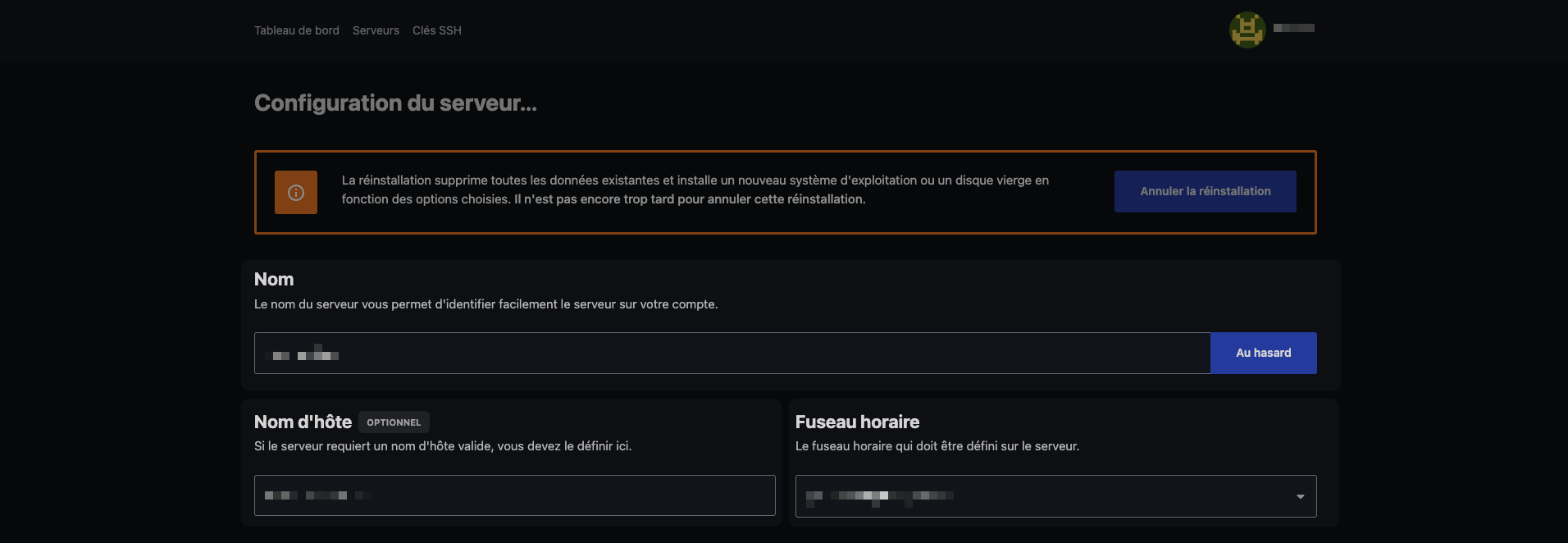
During installation, you’ll need to provide certain details in the Hosterfy management interface:
- Name: The name displayed in the management interface.
- Hostname: This field can be left empty.
- Time Zone: Choose the appropriate time zone to display the correct time.
Choosing the Operating System
You’ll find the automated Pterodactyl installation in the Pre-configured Software category.
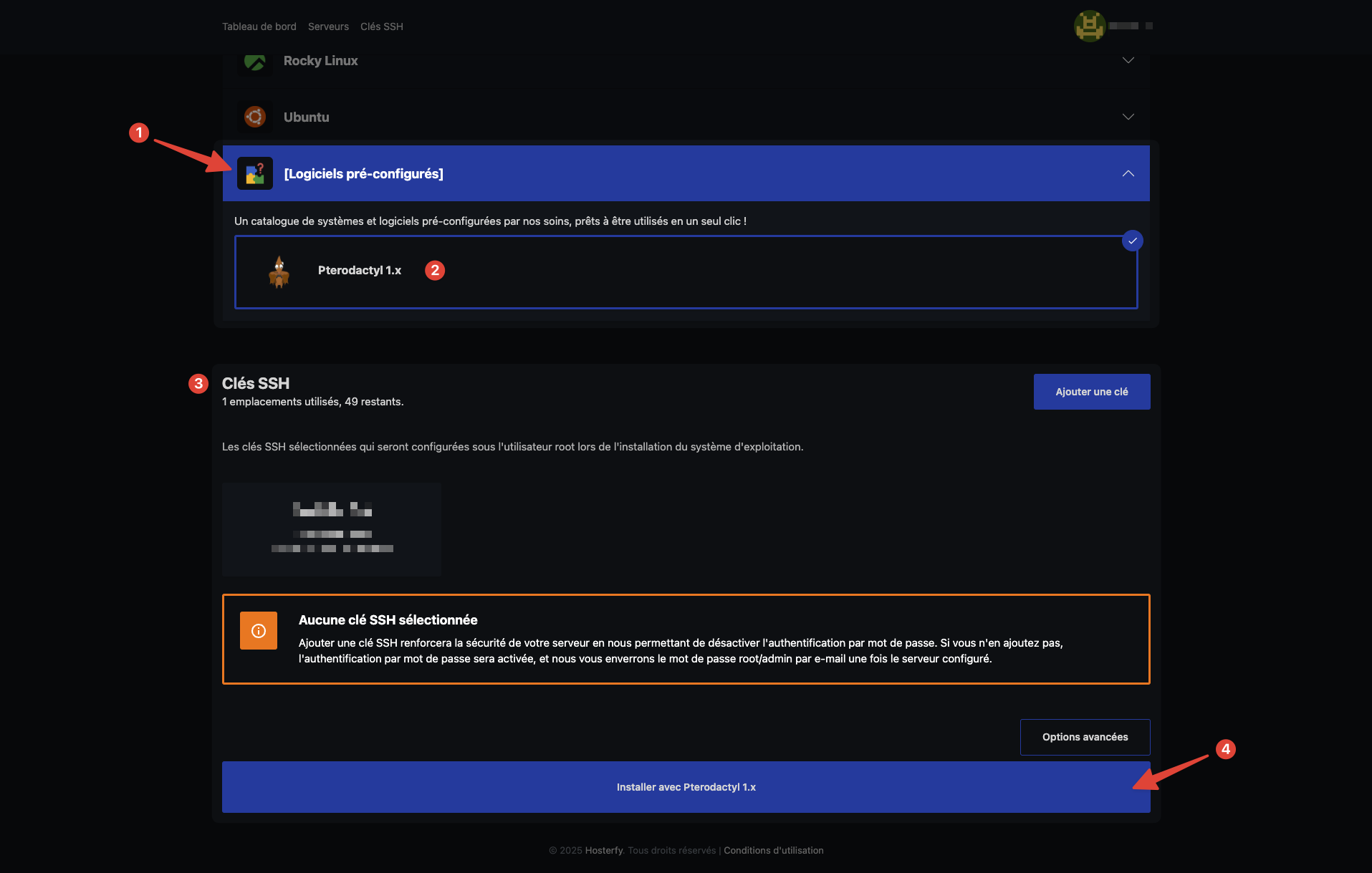
Once you select the Pterodactyl 1.x option, you’ll be prompted to add an SSH key for server connection. If you’re unsure what this means, you can skip this step. A password will be sent to you by email, allowing you to connect via SSH. Then, simply click the Install button to have Pterodactyl automatically installed and configured.
Accessing the Pterodactyl Control Panel
After your server is installed, you’ll receive an email with the login information. The default subdomain to access the Pterodactyl interface corresponds to the VPS IP address with the domain “.vps.hosterfy.cloud”.
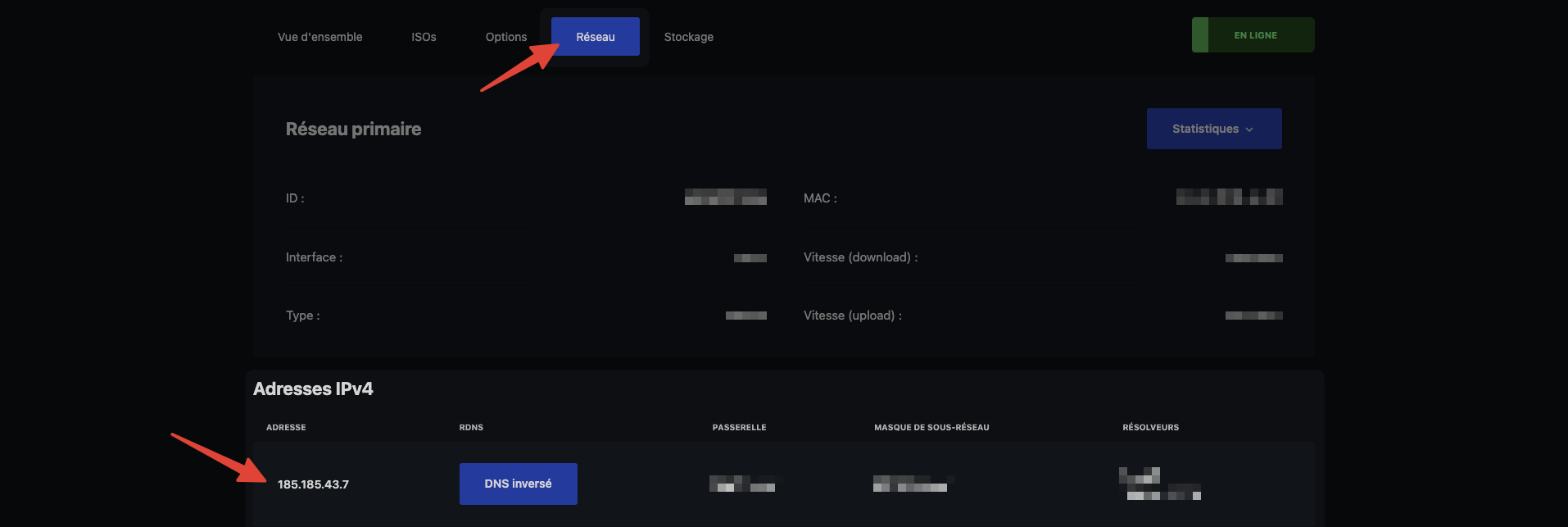
For example, if your VPS IP address is 185.185.43.1, you can access the panel at:
https://185.185.43.1.vps.hosterfy.cloud
For security purposes, the Pterodactyl admin account credentials are unique to your VPS. You can log in using the following:
- Username: admin
- Password: The initial password corresponds to your VPS UUID. You can find this in the URL of your VPS management panel on Hosterfy.
For example, if your VPS management URL is:
https://vps.hosterfy.com/server/e93708b1-6ab9-41fb-d301-2ecbc70c25a3,
the UUID is e93708b1-6ab9-41fb-d301-2ecbc70c25a3.

⚠️ Important Note: It is strongly recommended to change the admin account password immediately after your first login. Be sure to choose a strong password containing numbers, special characters, uppercase, and lowercase letters to ensure that access to your Pterodactyl server remains secure.






Post a comment
Comments