LuckPerms is a plugin that makes it easy to manage player permissions on a Minecraft server. It allows you to create groups, assign permissions, define ranks, and set up a hierarchy between the different roles on your server.
Widely used on Minecraft servers running Paper, Spigot, and their derivatives, LuckPerms provides much more precise permission management than Minecraft's built-in operator system. It is also compatible with many plugins and provides a web editor that makes it easy to configure permissions without having to enter all the commands manually.
What is LuckPerms?
LuckPerms is a permission management plugin for Minecraft. It allows you to control the commands and features that players have access to, organizing them into different groups.
For example, you can create groups such as Player, Moderator, and Administrator, then assign the appropriate permissions to each one.
LuckPerms also uses an inheritance system. A group can automatically inherit the permissions of another group, making it easy to build a rank hierarchy.
Before you start
Before installing LuckPerms on your server, make sure that:
- Your server is stopped;
- Your server uses Paper, Spigot, or other software compatible with LuckPerms;
- You have a version of LuckPerms compatible with your Minecraft version;
- You have access to your server's file manager.
You can download LuckPerms from the official LuckPerms website or from Modrinth.
We recommend creating a backup of your Hosterfy server before making any changes. You can create a backup directly from your Hosterfy panel, under Basic Configuration, then Backups.
Step 1: Download LuckPerms
Go to the LuckPerms download page and select the file corresponding to the software used by your server.
For a Minecraft server using Paper, Spigot, or similar software, choose the Bukkit / Paper / Spigot version.
The downloaded file is provided in .jar format. Make sure to choose a version compatible with your Minecraft version.
Step 2: Install LuckPerms on the server
Access your server's file manager from your Hosterfy panel or connect via SFTP.
Then open the plugins folder located at the root of your server.
Upload the previously downloaded LuckPerms .jar file into this folder.
Once the transfer is complete, start and then fully restart your server so that LuckPerms can automatically generate its files.
⚠️ Avoid using a reload command to load LuckPerms. A full server restart is recommended after installing or making significant changes to a plugin.
Step 3: Verify the installation
Once your server has started, open the console and look for messages indicating that LuckPerms has been successfully loaded.
You can also run the following command in-game or from the console:
/lp infoIf LuckPerms is installed correctly, information about the plugin and its version should be displayed.
LuckPerms will also automatically create its configuration folder in plugins/LuckPerms.
There you will find its configuration file as well as the data used to store permissions.
Step 4: Give permissions to your account
When LuckPerms is first installed, no player automatically has the permissions required to use all of its commands. To give yourself full access to LuckPerms, open your server console and use the following command:
lp user YOUR_USERNAME permission set luckperms.* trueReplace YOUR_USERNAME with your Minecraft username.
⚠️ This permission grants full access to LuckPerms features. It is intended for your administrator account and should not be assigned to regular players.
Step 5: Create your first group
Groups allow you to organize multiple permissions so they can easily be assigned to several players.
For example, we will create a group named moderator:
/lp creategroup moderatorYou can check the existing groups with:
/lp listgroupsLuckPerms also has a default group, which is used as the base group for players who do not have a specific group.
Step 6: Add a permission to a group
Once your group has been created, you can assign permissions to it.
For example, to allow the moderator group to use the /ban command, you can use:
/lp group moderator permission set minecraft.command.ban trueThe permission used depends on the plugin or feature concerned. Plugin permissions are generally listed in their documentation.
You can also use LuckPerms' verbose mode to identify the permissions being requested when a player uses a command or feature.
Step 7: Add a player to a group
To add a player to your moderator group, use the following command:
/lp user USERNAME parent add moderatorReplace USERNAME with the name of the player concerned.
The player will then inherit the permissions assigned to the moderator group.
Step 8: Create a group hierarchy
LuckPerms allows one group to inherit the permissions of another group. This is particularly useful for creating a rank system.
Let's imagine that your server has three groups:
- default: regular players;
- moderator: members of the moderation team;
- admin: server administrators.
You can make moderator inherit the permissions of default:
/lp group moderator parent add defaultYou can then make admin inherit the permissions of moderator:
/lp group admin parent add moderatorWith this system, an administrator will also inherit the permissions of the moderator group, which itself inherits the permissions of default.
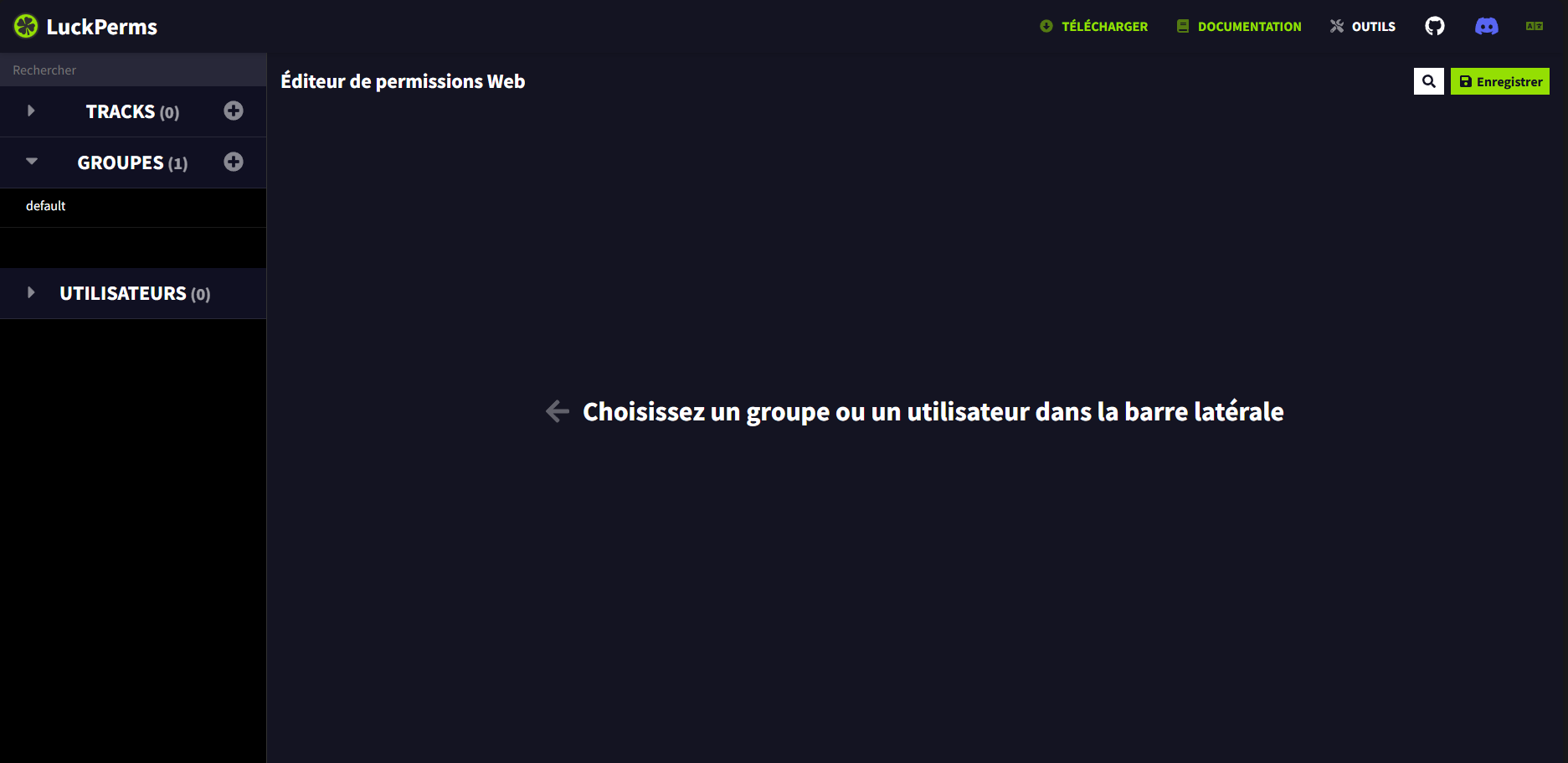
Step 9: Use the LuckPerms web editor
If you do not want to manage all your permissions using commands, LuckPerms also provides a web editor.
From your server, run:
/lp editorLuckPerms will then generate a link that allows you to open its web editor. You can create and modify your groups, permissions, and inheritance settings from a graphical interface.
Once you have finished making your changes, the editor will provide you with the command to run on your server to apply the changes.
Step 10: Configure storage
LuckPerms uses a local H2 database by default to store permission-related data. This configuration is perfectly suitable for a single server and does not require any additional setup.
For a network consisting of multiple Minecraft servers, however, it is necessary to use a remote database such as MySQL, MariaDB, PostgreSQL, or MongoDB so that the different LuckPerms instances can share the same data.
💡 If you are only using a single Minecraft server, we recommend keeping the default storage configuration. A remote database is generally only necessary for multi-server networks.
Troubleshooting
If LuckPerms is not working correctly, check the following:
- The LuckPerms version matches your Minecraft version;
- You downloaded the version corresponding to your server software;
- The .jar file is located in the plugins folder;
- The server was fully restarted after the installation;
- No other permission management plugin is installed alongside it;
- LuckPerms appears correctly in the server console;
- The permissions being used correspond to the relevant plugin.
If a permission does not seem to work, you can use the /lp verbose command to observe the permission checks performed by LuckPerms and identify the permission being requested.
Why use LuckPerms?
LuckPerms is a complete solution for managing permissions on a Minecraft server. It makes it easy to create ranks, organize a moderation team, and precisely control the features available to each player.
Its inheritance system also allows you to build a complete hierarchy without having to assign the same permissions individually to every player. The web editor is another convenient solution for managing more complex configurations.
Need help?
This guide was created on a Hosterfy Minecraft server. Would you like to create your own Minecraft server and set up a permission system for your community? Discover our Minecraft hosting plans.
If you encounter any difficulties installing or configuring LuckPerms, our team is available to help you configure your server! 🛠️






Post a comment
Comments